
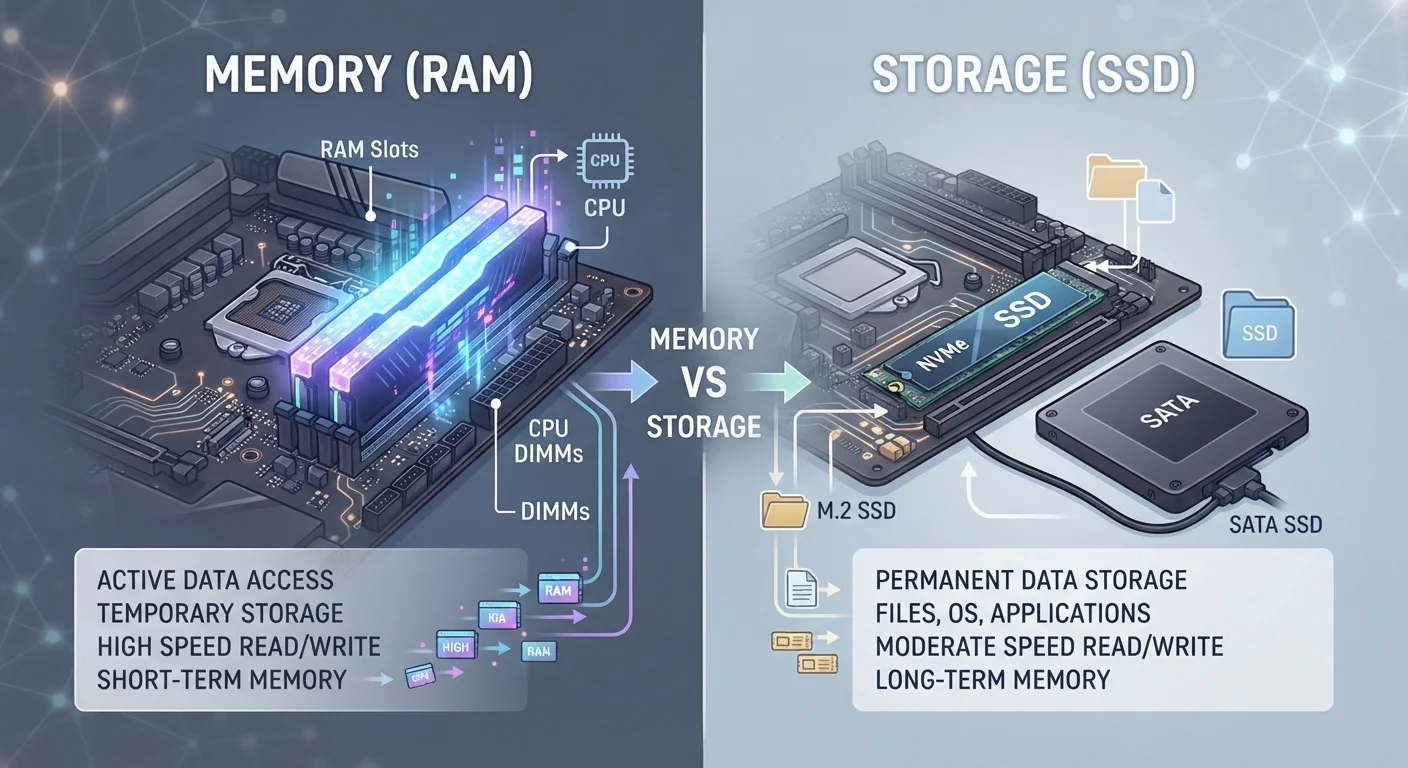
Why People Confuse RAM and Storage
Ask most people what's slowing down their computer and they'll say "I need more memory" — but what they actually need could be more RAM, more storage, or sometimes both. The two are frequently lumped together because they both involve data, and both are measured in gigabytes. That's roughly where the similarity ends.
Think of it this way: storage is your home's closet — where you keep everything you own. RAM is your kitchen counter — the active workspace where you put only what you're using right now. A cramped counter makes cooking chaotic. A full closet just means you need to reorganize or get a bigger one. Same house, very different problems.
This confusion has real consequences when people buy devices or troubleshoot performance issues. Understanding what each component actually does makes it much easier to diagnose a slow device or evaluate whether a spec sheet means anything for your actual needs.
What RAM Actually Does
RAM — short for Random Access Memory — is your device's short-term, active workspace. When you open an app, your device loads it from storage into RAM so the processor can access it quickly. RAM operates dramatically faster than even the fastest solid-state drives, which is why active processes live there instead of on disk.
The catch: RAM is volatile, meaning it wipes clean the moment power is cut. That's why unsaved work disappears if your laptop dies. It's not lost from storage — it was never written there yet.
8 GB
Minimum RAM for comfortable everyday use
Consumer tech analysts generally regard 8 GB as the practical baseline for modern laptops running standard productivity and browser tasks.
~10x
Speed advantage of RAM over typical SSDs
RAM bandwidth is roughly an order of magnitude faster than consumer SSDs, explaining why active processes are kept in memory rather than on disk.
256 GB
Common baseline SSD size in mid-range laptops
Most mid-range laptops ship with 256 GB of SSD storage, which can fill quickly for users who store photos, videos, or many applications locally.
Common RAM amounts in consumer devices range from 4 GB on budget tablets to 16 GB or more on mid-range laptops, with professional machines going higher. When RAM fills up, your device starts borrowing from storage as a substitute — a process called virtual memory — which is noticeably slower and often what causes that frustrating lag when too many tabs are open.
What Storage Actually Does
Storage — whether a traditional hard disk drive (HDD) or a solid-state drive (SSD) — is where your device permanently keeps everything: the operating system, every app you've installed, every photo you've taken, every file you've downloaded. Unlike RAM, storage doesn't care whether the power is on or off. Your data stays put.
The key difference between HDD and SSD storage is speed and durability. SSDs have no moving parts and retrieve data significantly faster than HDDs, which contributes to quicker boot times and faster app launches. But even the fastest SSD is still considerably slower than RAM — which is exactly why your device doesn't just run everything directly off the drive.
| Criterion | RAM | Storage (SSD/HDD) |
|---|---|---|
| Primary role | Active working memory | Permanent data holding |
| Data retention | Clears on power-off | Persists without power |
| Speed | Extremely fast | Fast (SSD) to moderate (HDD) |
| Typical consumer range | 4 GB – 32 GB | 128 GB – 2 TB+ |
| What fills it up | Open apps and processes | Files, apps, OS, media |
| Upgrade impact | Smoother multitasking | More room for files and apps |
Storage capacity is where most consumers notice limits first: a full drive prevents saving new files and can slow the whole system. If you work with large media files or download a lot, storage capacity is worth prioritizing. For lighter users — especially those who rely on cloud services like online photo backups or document syncing — see also how streaming and downloading affect your local storage needs.
How RAM and Storage Work Together
The two components work as a team, not as alternatives. When you launch a program, it travels from storage into RAM so the processor can work with it at full speed. When you save a file, it moves from RAM back to storage for safe keeping. This handoff happens constantly, invisibly, every time you use your device.
A device with plenty of storage but too little RAM will feel slow and unresponsive during use — even though there's room for more files. A device with plenty of RAM but nearly full storage will struggle with installs, updates, and saving new work — even though it multitasks smoothly. Neither component substitutes for the other.
Can You Upgrade RAM or Storage Later?
It depends on the device. Many desktop computers allow both RAM and storage upgrades relatively easily. Laptops vary widely — some allow one or both upgrades, while many modern thin-and-light models have components soldered to the motherboard, making upgrades difficult or impossible. Checking upgradeability before purchase is worthwhile if you expect your needs to grow.
When evaluating a device, consider both numbers relative to how you actually use it. Heavy multitaskers and creative professionals tend to feel RAM limits first. People with large media collections or many installed apps hit storage limits sooner.