
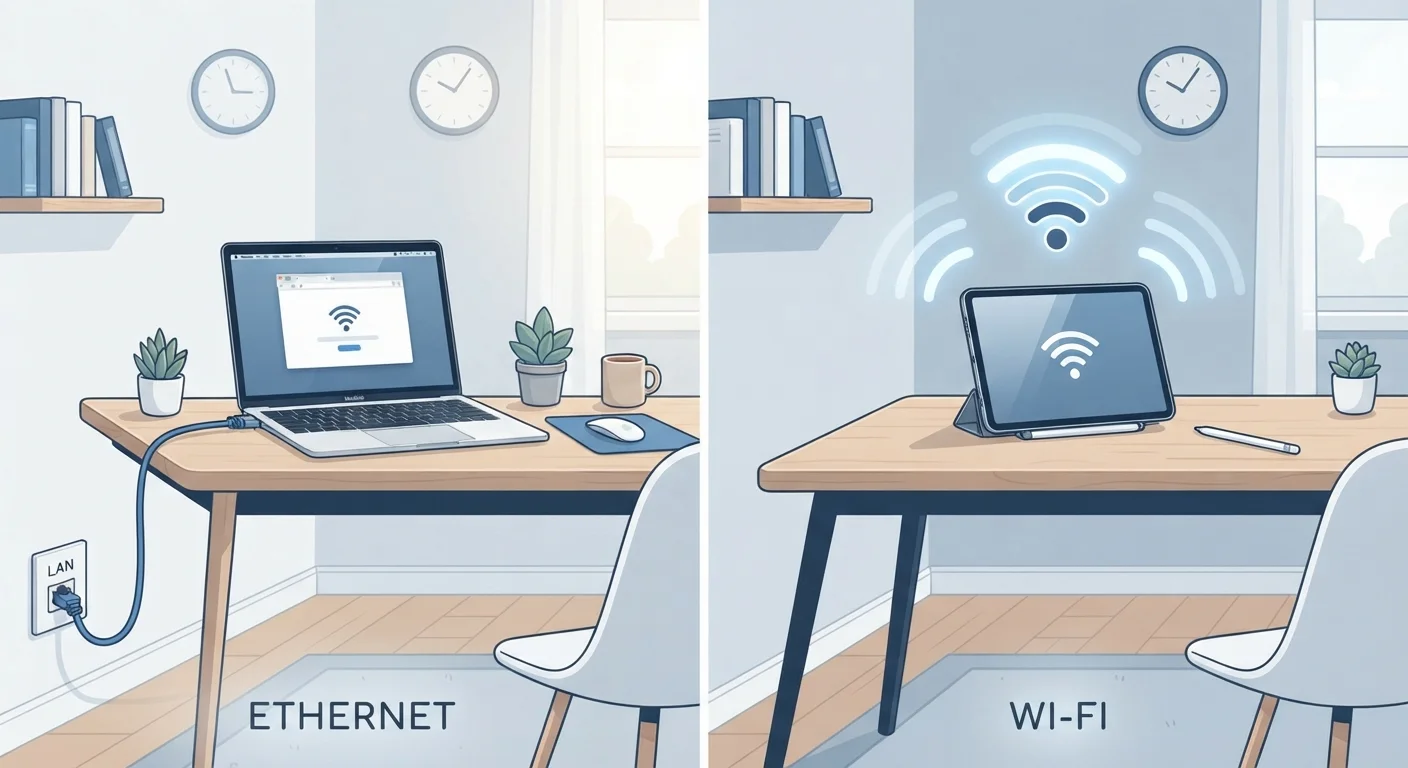
What Actually Differs Between Wired and Wireless
The core difference isn't just about speed numbers on a spec sheet — it's about how data travels. An Ethernet cable creates a direct, dedicated path between your device and your router. Wi-Fi transmits data through radio waves that bounce around your environment, competing with other signals and physical obstacles along the way.
This distinction produces three practical differences consumers notice:
- Latency: Wired connections have consistently lower latency (the delay before data starts moving). For gaming or video calls, this matters more than raw download speed.
- Stability: Ethernet doesn't fluctuate based on how many devices are nearby or what your neighbors are doing. Wireless signals can degrade due to interference, distance, and congestion — a common cause behind evening slowdowns.
- Convenience: Wi-Fi wins decisively here. No cables, no ports required, and your device stays connected as you move through your home.
When Wired Is the Smarter Choice
Certain situations consistently favor a physical connection, regardless of how good your Wi-Fi router is.
Gaming and Competitive Online Play
Lag spikes — sudden jumps in latency — are far more damaging than slow average speeds in real-time online games. Ethernet's stable, low-latency connection reduces the chance of those spikes occurring mid-match.
Video Conferencing and Remote Work
Dropped frames, audio cutting out, and frozen video are often caused by wireless instability rather than insufficient internet speed. Plugging a work laptop into Ethernet typically smooths out these issues significantly.
4K Streaming Devices and Smart TVs
Streaming high-resolution video requires sustained throughput. A wired connection to your TV or streaming box ensures the signal doesn't stutter when nearby devices compete for Wi-Fi bandwidth.
Network-Attached Storage (NAS) and File Transfers
Moving large files between devices on your local network — photos, videos, backups — is dramatically faster over Ethernet. Wireless speeds for local transfers often fall well short of what a cable can deliver.
Check Your Device for an Ethernet Port First
Many modern laptops have dropped the Ethernet port to save space. Before planning a wired setup, check whether your device has a built-in Ethernet port or whether you'll need a USB-to-Ethernet adapter. Both USB-A and USB-C adapters are widely available and work reliably with most operating systems — just confirm compatibility before purchasing.
When Wireless Is the Practical Answer
Wi-Fi isn't a compromise in every scenario — for many tasks and devices, it's genuinely the right tool.
Phones, Tablets, and Laptops
These devices are designed for mobility. Running an Ethernet cable to a phone isn't practical, and for everyday browsing, email, and video streaming, modern Wi-Fi handles the load comfortably.
Rental Homes and Apartments
Running Ethernet through walls requires drilling and routing cable — something many renters can't do. Powerline adapters and MoCA adapters offer partial alternatives, but wireless remains the simplest solution when cable runs are off the table.
Smart Home Devices
Thermostats, light bulbs, door locks, and cameras typically use Wi-Fi or Zigbee protocols. Wiring these devices isn't an option, and the data they send is small enough that wireless handles it without issue.
For households looking to maximize wireless performance, understanding the differences between modern Wi-Fi standards is worthwhile — Wi-Fi 6 and 6E introduced meaningful improvements in handling multiple simultaneous devices.
| Wired (Ethernet) | Wireless (Wi-Fi) | |
|---|---|---|
| Speed consistency | Highly consistent, no fluctuation | Variable, affected by interference |
| Latency | Low and stable | Higher and less predictable |
| Mobility | None — tethered to cable | Full freedom of movement |
| Setup complexity | Requires cable runs or adapters | Simple, works out of the box |
| Best device types | Desktops, consoles, smart TVs | Phones, tablets, smart home devices |
| Sensitivity to obstacles | Not affected by walls or distance | Degrades with walls and distance |
| Ideal use cases | Gaming, video calls, file transfers | Browsing, streaming on mobile devices |
Building a Hybrid Setup That Works
Most households don't have to pick one approach exclusively. A common and practical strategy:
- Run Ethernet to stationary, high-demand devices — desktop computers, gaming consoles, smart TVs, and any device that rarely moves.
- Let Wi-Fi serve everything else — phones, tablets, laptops, and smart home gadgets.
If running cables through walls isn't feasible, powerline adapters (which send network signals through your home's existing electrical wiring) or MoCA adapters (which use coaxial cable) can extend a wired connection to parts of your home without new cable runs. These aren't equivalent to a direct Ethernet run but outperform Wi-Fi in stability for stationary devices.
Accessories and connector types matter when setting up a wired network too — understanding what ports your devices use is a prerequisite. Our USB connector guide covers the ports you're most likely to encounter on modern devices.
Don't Assume More Speed Always Solves the Problem
Upgrading your internet plan is a common reaction to network frustration, but it won't fix instability caused by wireless interference or a congested home network. If you're experiencing drop-outs or jitter, switch to Ethernet before assuming your plan is the bottleneck. You may find that a cable — not a faster subscription — is what you actually needed.