
The Three Connectors You'll Encounter Most
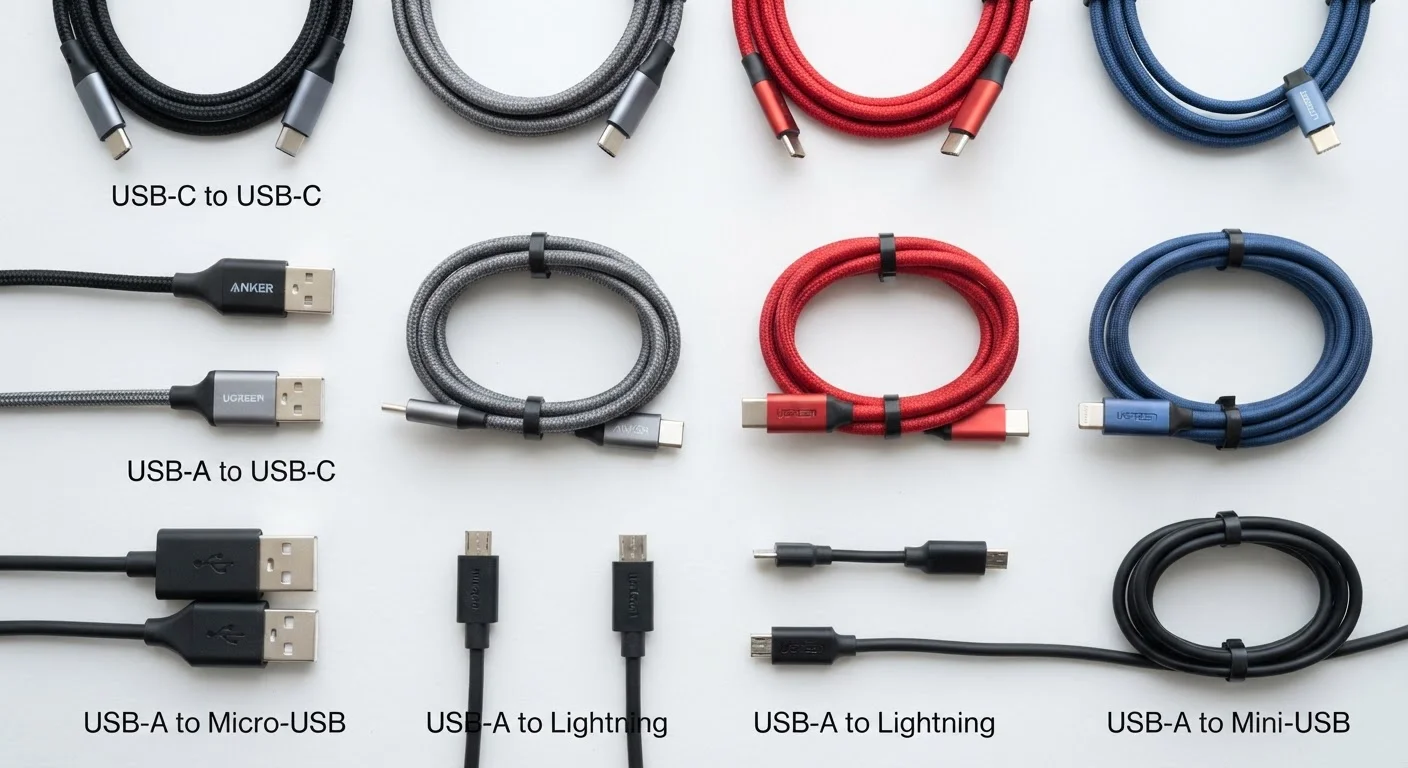
Walk into any home and you'll find a tangle of cables. Most of them end in one of three connector types: USB-A, USB-C, or Micro-USB. Each has a different physical shape, a different history, and different capabilities — and understanding the basics saves you from buying the wrong cable or wondering why your phone won't fast-charge.
| USB-A max data speed (USB 3.2 Gen 2) | Up to 10 Gbps (USB Implementers Forum specification) |
| USB-C max data speed (USB4 Gen 3) | Up to 40 Gbps (USB Implementers Forum specification) |
| Micro-USB max data speed | Up to 480 Mbps (USB 2.0) (Standard Micro-USB 2.0 specification) |
| USB-C max charging power (USB PD) | Up to 240 W (USB PD 3.1 specification) |
| USB-A standard charging output | 5 V / 0.5–0.9 A (2.5–4.5 W) (USB 2.0 and 3.x base power specifications) |
| USB-C reversible plug | Yes — no wrong way to insert (USB-C connector design specification) |
USB-A is the rectangular plug you've used for decades. It fits into the flat, horizontal ports on laptops, TVs, game consoles, and wall chargers. It only inserts one way (something many people discover by trying both). USB-A ports span multiple protocol generations — from USB 2.0 (older, slower) to USB 3.2 (faster, often marked with a blue tongue inside the port). For general purposes — keyboards, mice, thumb drives, slower charging — USB-A still does the job reliably.
USB-C is the small, oval connector now found on most modern smartphones, tablets, and laptops. Its symmetrical shape means it inserts either way. What makes USB-C genuinely different isn't just the shape — it's the range of standards it can carry. A single USB-C port might support USB 2.0 speeds, USB 3.2, USB4, or even Thunderbolt 4, depending on the device. It can also deliver much higher charging power. This versatility is why it's become the dominant connector going forward, and why the EU mandated it as the common charger standard for consumer electronics. For more on how charging power works, see what the numbers on a power adapter actually mean.
Micro-USB is the small, trapezoid-shaped connector that was standard on Android phones and accessories throughout the 2010s. It's largely been replaced by USB-C on newer devices, but it's still common on budget accessories, older e-readers, wireless speakers, and certain peripherals. Micro-USB is almost always limited to USB 2.0 speeds and basic charging power.
Why the Same-Looking Port Behaves Differently
This is where most cable confusion originates. The physical connector shape and the USB protocol version are two separate things. A USB-C port on a budget phone might only support USB 2.0 data speeds (480 Mbps) and 18 W charging — while a USB-C port on a current laptop might support USB4 at 40 Gbps and 100 W charging. They look identical.
Same Port, Different Capabilities
Two devices can share the same physical USB-C port but support completely different speeds and power levels. Always check your device's documentation for the USB version and wattage it supports — the connector shape alone tells you nothing about performance. This distinction matters especially when choosing cables for fast charging or high-speed data transfers.
The same applies to USB-A. A blue USB-A port signals USB 3.x support; a black port typically indicates USB 2.0. That color convention isn't universal, though — always check specifications when speed matters.
USB
Universal Serial Bus — an industry-standard connection system that lets devices transfer data and receive power through a common interface. The 'universal' name refers to the goal of replacing the many incompatible ports that previously existed on computers.
USB Protocol Version
The underlying specification (e.g., USB 2.0, USB 3.2) that governs how fast data moves through a cable. The connector shape and the protocol version are separate things — a port can look the same but support very different speeds.
USB Power Delivery (USB PD)
A charging standard that allows compatible USB-C ports to negotiate higher voltage and wattage, enabling fast charging of laptops, tablets, and phones. Requires both the cable and the charger to support the standard.
Backward Compatibility
The ability of a newer USB standard or connector to work with older devices. USB-A ports on a USB 3.0 hub, for example, still accept USB 2.0 devices without issue.
Thunderbolt
A high-speed connection standard developed by Intel that physically uses the USB-C connector shape but is a distinct protocol. Not all USB-C ports support Thunderbolt; look for the lightning-bolt icon.
Data Transfer Rate
How quickly information moves between two connected devices, measured in megabits per second (Mbps) or gigabits per second (Gbps). Higher rates matter most when transferring large files like videos or disk backups.
Cable quality compounds this further. A USB-C cable rated for USB 2.0 will physically connect to a USB4 port but cap your speeds at USB 2.0. For fast data transfers or high-wattage charging, you need a cable explicitly rated for the standard you want to use. Cables certified by the USB Implementers Forum carry verified ratings — look for that certification when performance matters.
If you're weighing whether to go wired at all, our article on wired vs. wireless connections covers when a cable is genuinely the better choice versus wireless alternatives. And if you're newer to electronics concepts in general, our beginner's electronics guide puts connectors in broader context alongside power, storage, and displays.