
What the Numbers Actually Mean
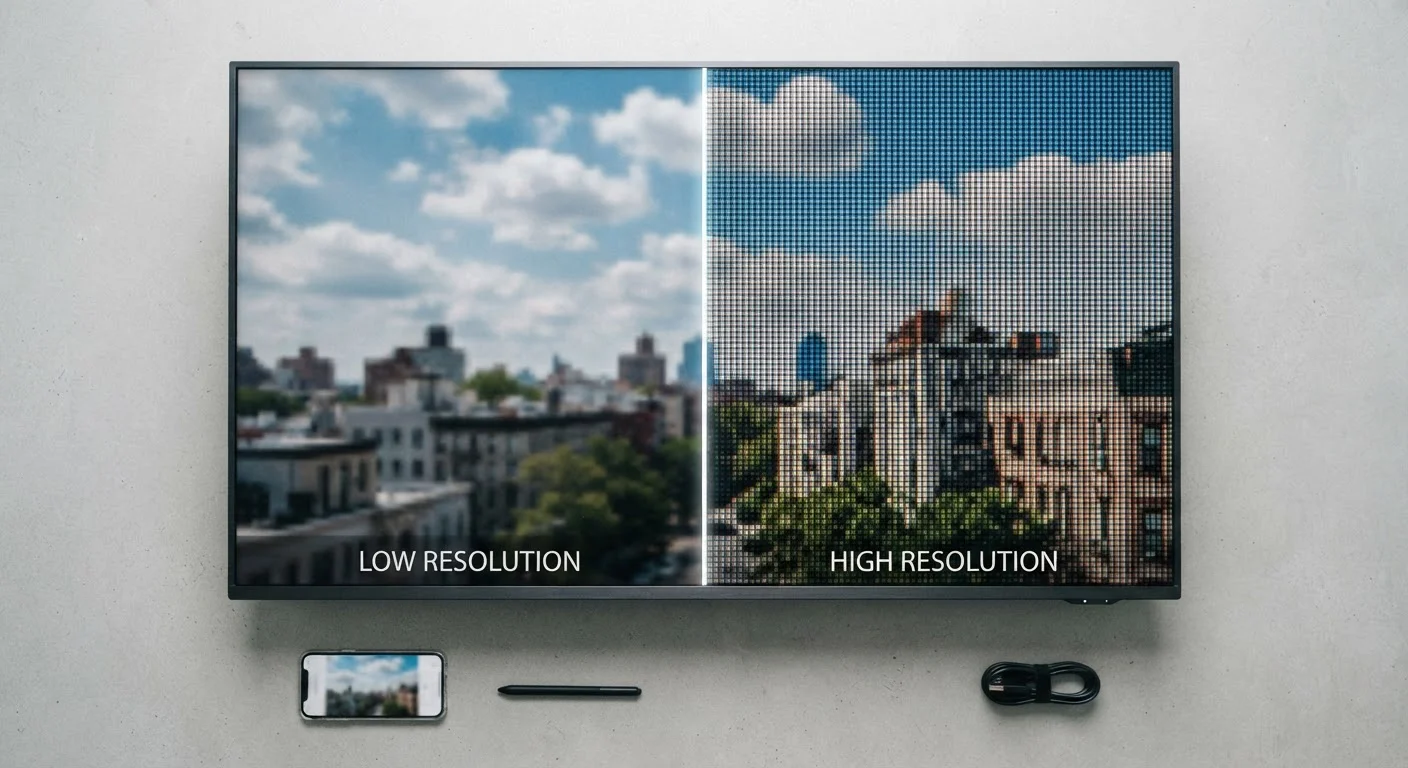
Every screen — TV, monitor, phone, or tablet — is made up of a grid of tiny colored dots called pixels. Resolution tells you how many of those dots exist horizontally and vertically. The notation '1080p' refers to 1,080 rows of pixels running top to bottom; the 'p' stands for progressive scan, meaning all rows refresh simultaneously for a smooth image.
Common resolutions you'll encounter:
- HD (720p): 1280×720 pixels — still found in budget TVs and older streaming tiers.
- Full HD / 1080p: 1920×1080 pixels — the dominant standard for streaming, gaming, and mid-range displays.
- 1440p (QHD): 2560×1440 pixels — popular with PC monitors as a middle ground between 1080p and 4K.
- 4K (UHD): 3840×2160 pixels — four times the pixel count of 1080p, now standard on most new large TVs.
- 8K: 7680×4320 pixels — commercially available but with almost no consumer content to match.
Understanding these numbers helps decode spec sheets, but raw pixel count is only part of the picture. Just as vacuum cleaner specs don't tell the whole performance story, screen resolution specs need context to be useful.
Pixel Density: Why Screen Size Changes Everything
Pixel density — measured in pixels per inch (PPI) — describes how tightly packed those pixels are. This is where resolution gets genuinely interesting for buyers.
Imagine spreading 1080p's roughly two million pixels across a 24-inch monitor versus a 75-inch TV. On the monitor, those pixels are packed closely together and the image looks sharp. On the 75-inch screen, the same pixel count is stretched over a much larger surface, making individual pixels easier to detect — the image can look soft or blocky when viewed up close.
4×
More pixels in 4K versus 1080p
A 4K (3840×2160) display contains approximately 8.3 million pixels — exactly four times the roughly 2.1 million in a 1080p display.
~9 ft
Viewing distance where 4K advantage fades on a 65-inch screen
Visual acuity research suggests that beyond roughly 9 feet from a 65-inch display, the human eye typically cannot resolve the difference between 1080p and 4K under normal viewing conditions.
This is why a 4K resolution makes a more meaningful difference on a 65-inch TV than on a 27-inch monitor viewed from four feet away. At typical living-room distances (8–12 feet), human vision has a practical limit to the detail it can resolve. Manufacturers sometimes call this the 'retina threshold' — the point where individual pixels become invisible to the naked eye at a given distance.
If you're shopping for a computer monitor, 1440p at 27 inches often delivers noticeably sharper text and images than 1080p, making it a resolution worth considering if screen real estate matters to your workflow.
When Higher Resolution Makes a Real Difference
Higher resolution is genuinely worthwhile in specific situations:
- Large screens viewed at close range: A 55-inch or larger TV watched from under 7 feet, or a monitor used at arm's length, benefits visibly from 4K.
- Photo and video editing: Professionals working with high-resolution images benefit from more screen pixels to accurately assess fine detail.
- Gaming at close viewing distance: PC gamers sitting 2–3 feet from a monitor may notice sharper textures and cleaner edges at 1440p or 4K.
On the other hand, resolution matters less when:
- Your content source is 1080p or lower — a 4K screen cannot create detail that wasn't in the original file.
- Your internet connection or streaming plan doesn't support 4K output. Understanding how streaming bandwidth works helps clarify why your 4K TV might not always deliver 4K images.
- The screen is small or viewed from far away, where the resolution difference falls below the threshold of human perception.
Check Your Content Before Upgrading Resolution
Before investing in a higher-resolution display, verify that your primary content sources — streaming apps, game consoles, or Blu-ray players — can actually output at that resolution. A 4K screen showing upscaled 1080p content may look no better than a native 1080p display, and sometimes slightly worse depending on the upscaling quality.
Resolution is also one of many picture-quality factors. Panel technology (OLED vs. LCD), refresh rate, HDR support, and local dimming often have a more immediately noticeable impact on everyday viewing than jumping from 1080p to 4K.
Putting It All Together as a Consumer
When evaluating a screen, match the resolution to your actual setup rather than chasing the highest number on the box.
A useful mental checklist:
- Screen size: Larger than 50 inches? 4K starts to earn its keep. Under 40 inches for a TV? 1080p is often indistinguishable from 4K at normal viewing distances.
- Viewing distance: Sitting closer than 6 feet to a large TV? Higher resolution will be more perceptible.
- Content and source: Confirm your streaming service, cable box, Blu-ray player, or gaming console can actually output at the resolution you're buying for.
- Budget trade-offs: Resolution upgrades cost money that might deliver more visible improvement spent on a better panel type or HDR capability.
Spec literacy — understanding what a number actually means versus what it's marketed to imply — is one of the most practical consumer skills around. The same critical reading applies whether you're evaluating electronics, home appliances, or even financial products like credit scores. Numbers only help when you understand what they measure.